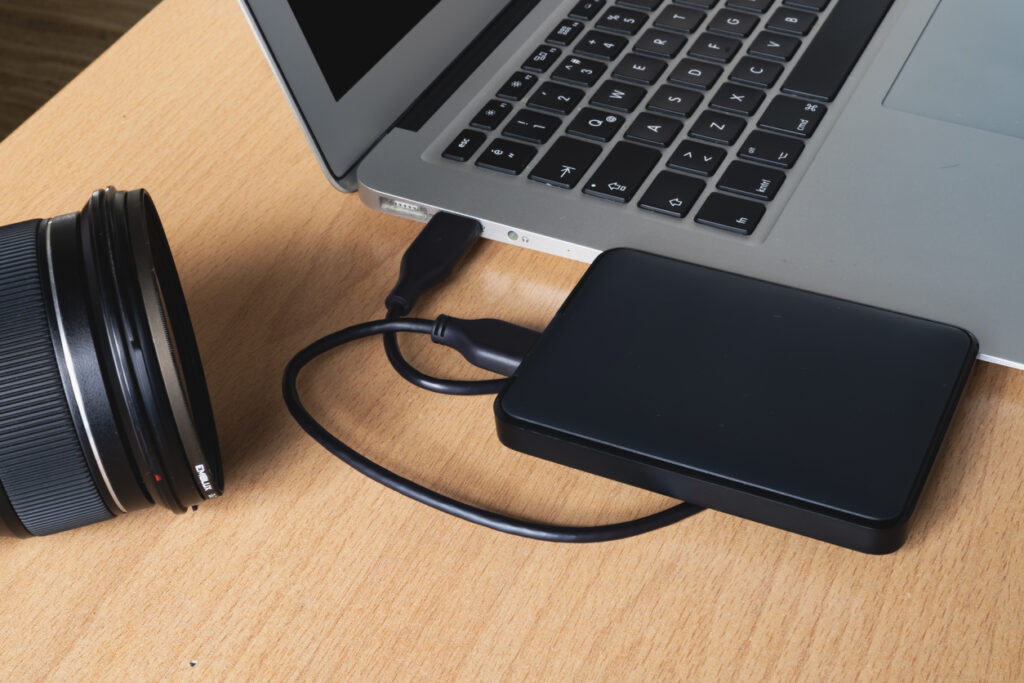
An external hard drive not showing up on your computer can be worrying, particularly if it contains important documents, family photos or work files. Fortunately, this doesn’t always mean your files have been lost.
An external hard drive may not appear because of a faulty USB connection, outdated drivers, file system corruption or physical damage. Some problems have simple fixes, while others require professional attention. Understanding the possible causes can help you avoid making the situation worse.
Why Is My External Hard Drive Not Showing Up?
External hard drives can stop appearing on Windows computers or Macs for several reasons. Sometimes, the problem is as straightforward as a damaged USB cable. In other cases, the computer detects the device but cannot access the files stored on it.
Problems can also develop within the drive itself. Traditional hard disk drives contain moving components that can wear out or become damaged, while solid-state drives (SSDs) can experience electronic or firmware faults. Understanding the differences between SSDs and traditional hard drives can help explain why different storage devices experience different problems.
What Should You Check First?
Before assuming your external hard drive has failed, there are several straightforward checks worth making. These can help establish whether the problem lies with the drive, cable or computer.
Check the USB cable: A damaged or loose cable may prevent the computer from detecting the device. Try another compatible cable.
Try another USB port: Connect the drive directly to another port rather than through a USB hub.
Check the power supply: Some external hard drives require a separate power adapter to operate correctly.
Test another computer: Connecting the drive to another compatible computer can help identify whether the issue is device-specific.
Listen for unusual noises: Clicking, grinding or repeated attempts to start can indicate mechanical damage. Stop using the drive if you notice these sounds.
If the drive contains valuable files, avoid repeatedly reconnecting it when you suspect physical damage. Continued operation could make recovering the data more difficult.
Why Is My Hard Drive Not Showing Up in Windows?
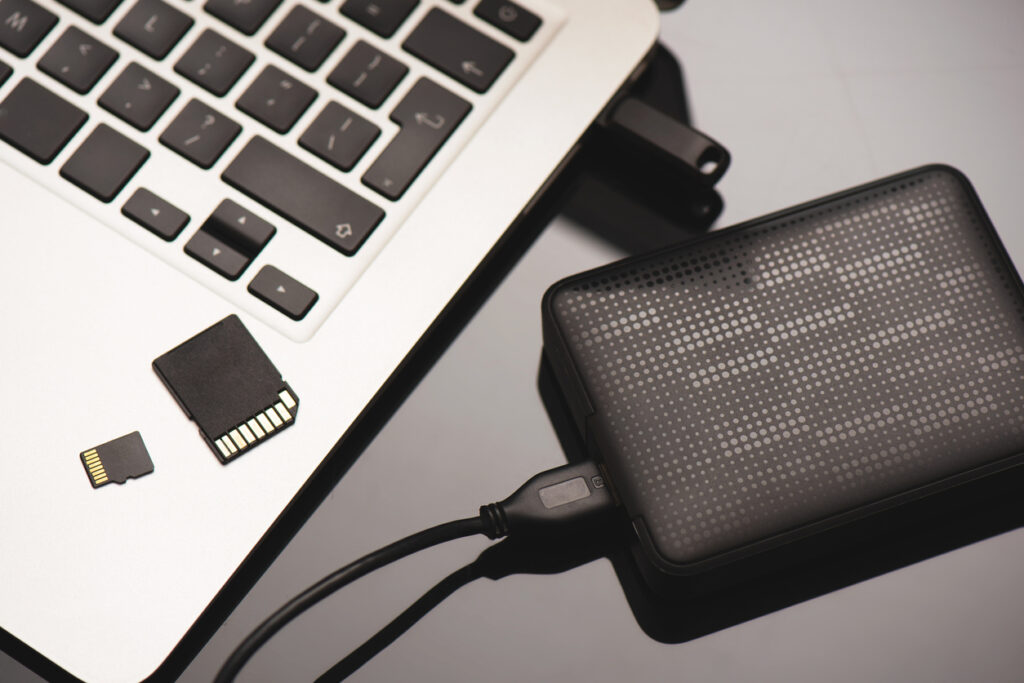
Windows may recognise an external hard drive without displaying it in File Explorer. This can happen when the drive lacks an assigned letter, has an unsupported file system or contains damaged partition information.
You can check whether Windows detects the device by opening Disk Management. Right-click the Start button and select Disk Management to view connected storage devices. If the drive appears but cannot be accessed, avoid formatting or initialising it, as these actions could complicate data recovery. Microsoft’s Disk Management guidance explains how the tool works.
Why Is My External Hard Drive Not Showing Up on a Mac?
Mac users can experience similar problems, particularly when connecting drives previously used with Windows computers. Different file systems, connection faults and damaged storage components can all affect whether a Mac recognises an external device.
Open Disk Utility and select View, followed by Show All Devices, to check whether the drive appears. If the device is detected but won’t open, there may be a problem with its file system. Although Disk Utility includes repair tools, it’s sensible to seek advice before attempting repairs when the drive contains important files without a backup.
Can You Recover Files From an External Hard Drive?
Files can sometimes be recovered from an external hard drive that isn’t showing up, depending on what caused the problem. Deleted files, damaged partitions and certain software faults may allow recovery using specialist tools. Physical damage can be more complicated and may require specialist equipment.
Recovery success depends on the condition of the drive and whether the original data has been overwritten or further damaged. If your files are particularly valuable, avoid installing recovery software onto the affected device or attempting repairs without understanding the risks. Professional assessment can help establish the safest approach.
When Should You Seek Professional Data Recovery?
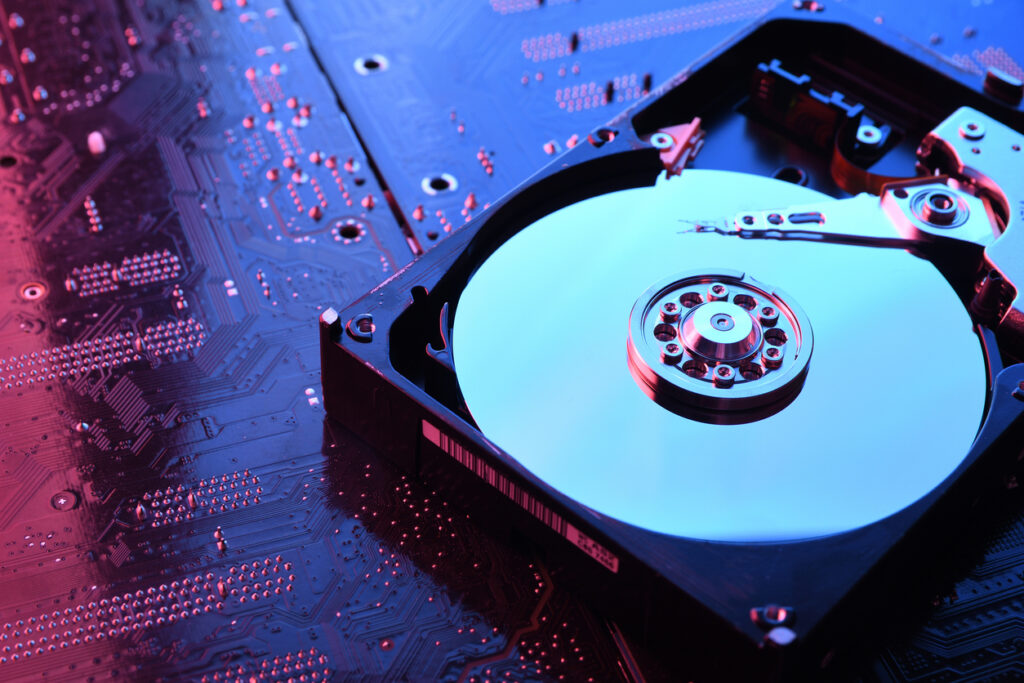
If an external hard drive remains undetected after basic connection checks, professional diagnosis may be necessary. Warning signs include unusual clicking noises, repeated disconnections, extremely slow file access or error messages suggesting the drive needs formatting.
At PC Dial A Fix, we provide data recovery services in Bristol for customers experiencing problems with external hard drives, SSDs and other storage devices. Our team can assess the fault, explain the available recovery options and help determine the most appropriate next step.
How Can You Prevent External Hard Drive Problems?
Although hardware failures aren’t always preventable, careful handling and regular backups can reduce the risk of permanent data loss. Keep external drives away from excessive heat and moisture, avoid disconnecting them during file transfers and protect them from accidental drops.
Most importantly, never rely on a single external hard drive to store irreplaceable files. Maintaining another backup, whether on a separate device or secure cloud storage, provides additional protection if your drive suddenly stops working.
If your external hard drive isn’t showing up and you’re worried about losing important files, contact PC Dial A Fix for advice on identifying the problem and your available recovery options.